
AI listing photos and campaign design for real estate agents
Prepare listing photos, open-house flyers, and just-listed social posts in one creative workspace. Bring your property photos, brokerage branding, and verified listing details; review each design before publishing.
How it works
- Step 1Prepare accurate listing photos
Upload a property JPG or PNG, adjust exposure and color in the editor, or request AI enhancement. Compare the result with the original: do not misrepresent fixtures, room size, views, or property condition.
- Step 2Build an open-house campaign
Use your property photo as the starting point for a flyer. Add your date, address, price, logo, and contact details as editable text and image overlays; check final wording and your printer's requirements before export.
- Step 3Adapt just-listed social posts
Create a listing announcement, then use Repurpose for selected social sizes. Download the images and copy your caption to publish manually; automatic social posting is not required.
Real before & after
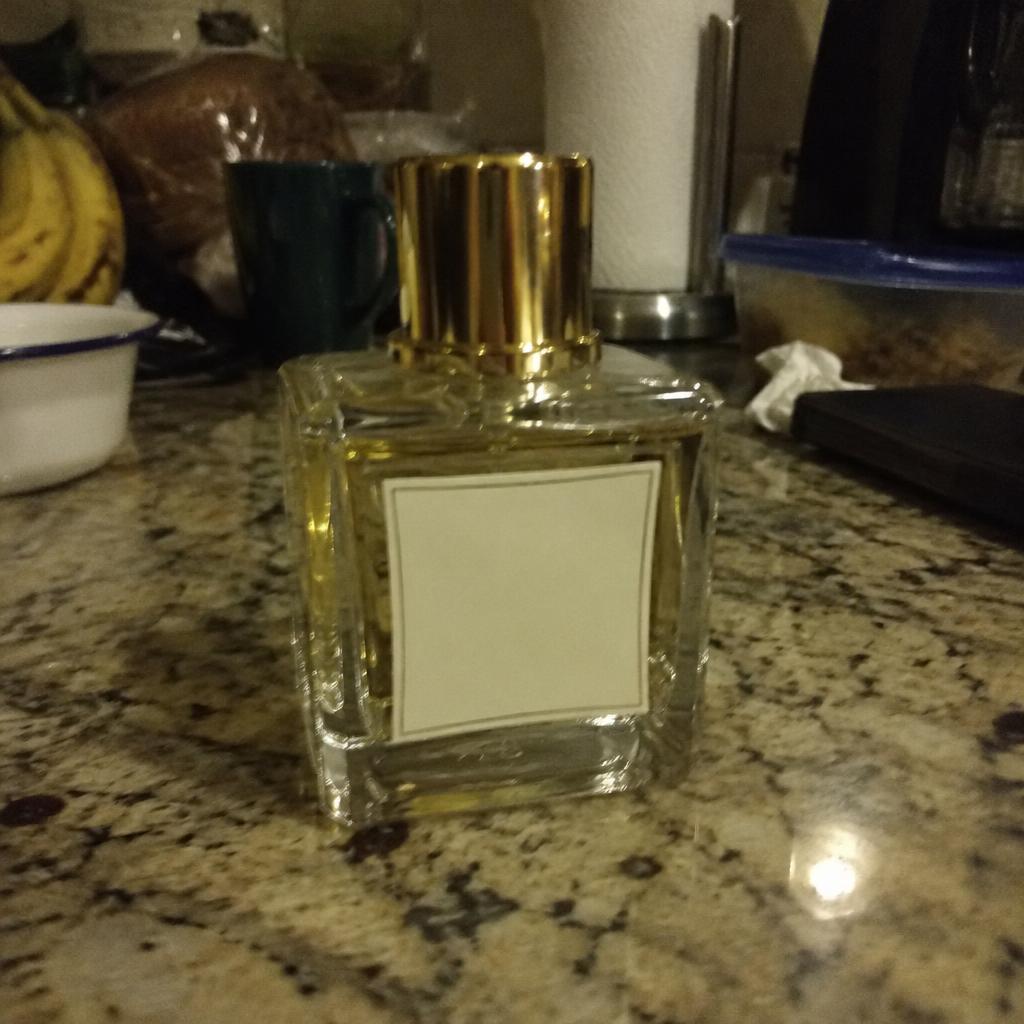 Before
 After
After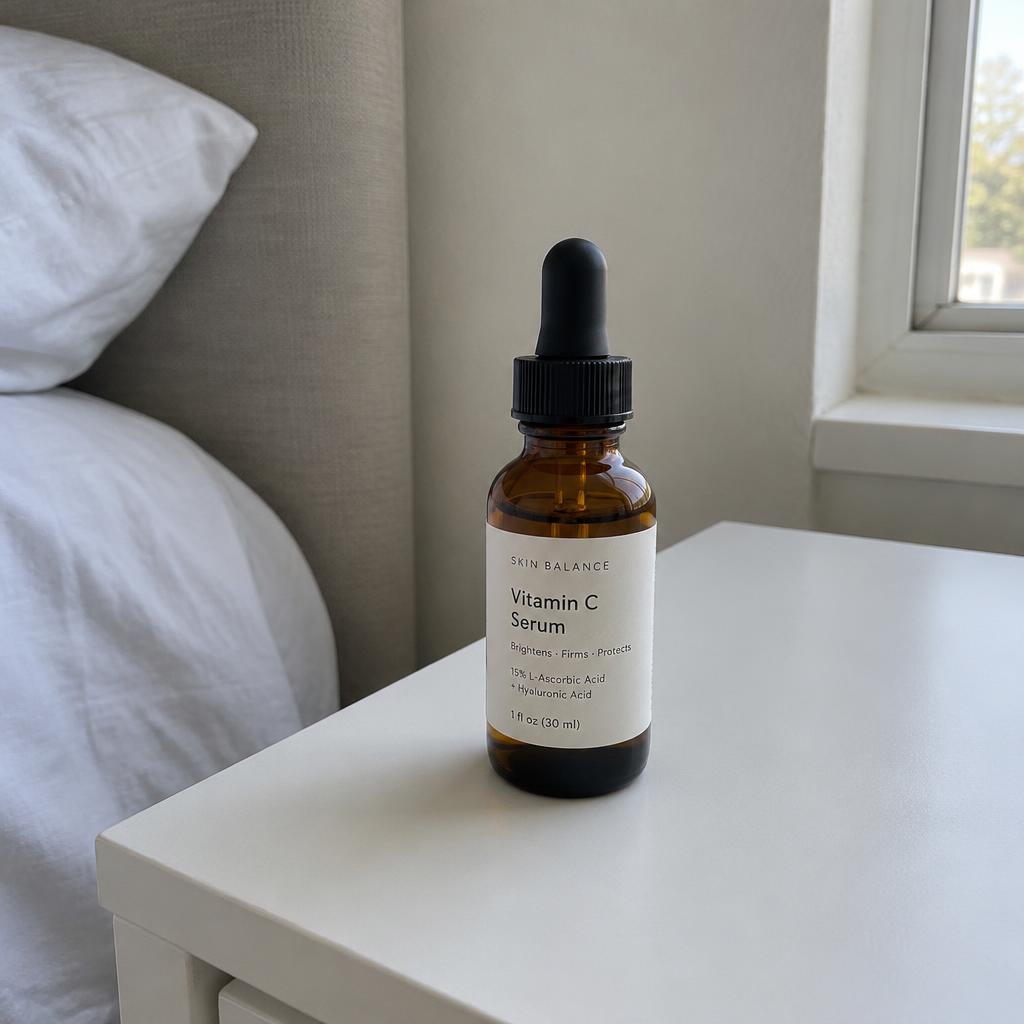 Before
 After
After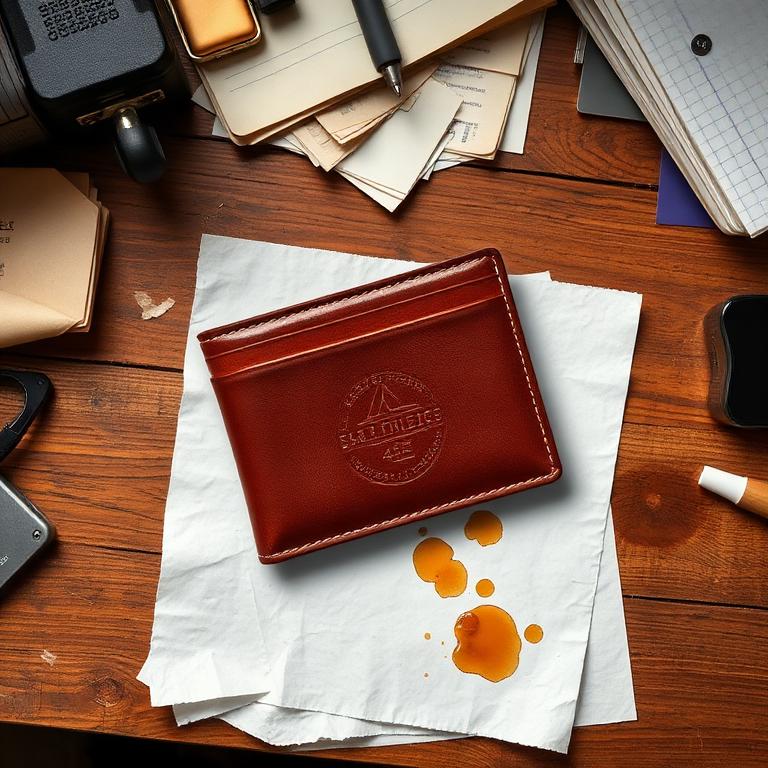 Before
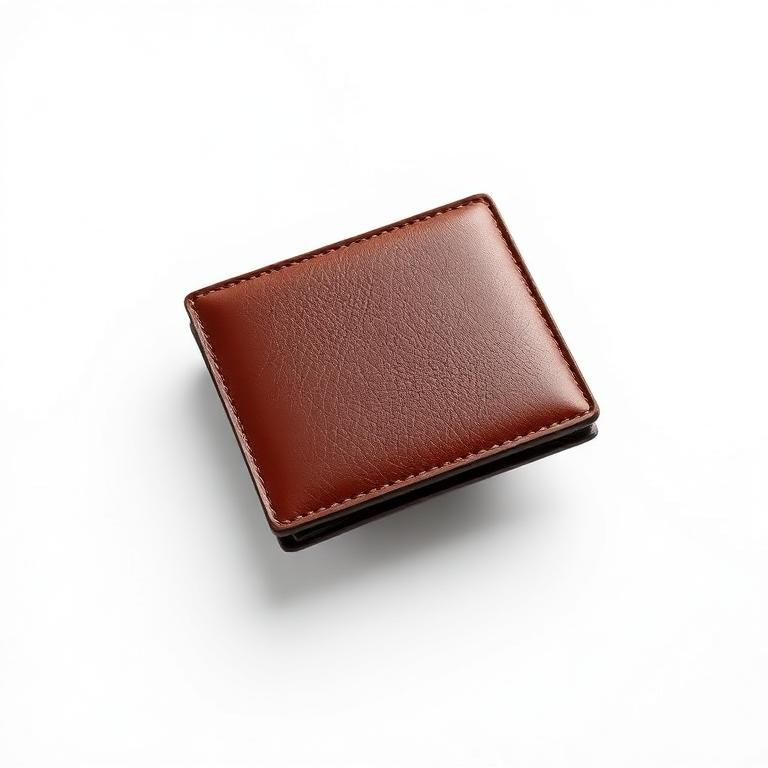 After
After Before
 After
AfterWhy real estate agents pick Kyanbasu
Keep property photos, campaign projects, and brokerage assets together instead of moving them between separate tools. The editor combines photo adjustments with text and logo overlays; Brand Kit stores your identity, and Repurpose prepares selected social formats. Product Photoshoot is designed for products and lifestyle scenes, not for certifying property accuracy or replacing a real-estate photographer. Start with your own listing photo, build one announcement, and review the details before sharing it.
Kyanbasu vs a manual multi-tool workflow
| Feature | Kyanbasu | a manual multi-tool workflow |
|---|---|---|
| Photo and campaign design | Photo adjustments and campaign design in one workspace | Move photos between editing and design tools |
| Brokerage identity | Saved Brand Kit with logos, colors, fonts, and voice guidance | Keep brand references separately and apply them by hand |
| Listing campaign formats | Repurpose exports selected channel sizes together | Prepare and download each channel version separately |
| AI spending | Credit costs shown before generation | Check each tool's separate pricing and allowance |
Frequently asked questions
Can I use my brokerage logo and colors?
Yes. Save your logo, colors, fonts, and voice guidance in a Brand Kit, then use them in your campaign. Check the final design against your brokerage's brand rules; automatic application varies by tool.
Can I publish edited photos to an MLS?
Upload property JPG or PNG photos you have permission to use. Review every edit for accuracy and follow your MLS, brokerage, and local advertising rules. Kyanbasu does not certify listing compliance; do not present AI-altered property features as real.
Can I edit the words in an AI-generated flyer?
AI-generated artwork is a single image, not a fully layered design. For changeable addresses, prices, and dates, add separate text overlays in the editor. Save the project so you can return and update those overlays.
Where should I start?
Choose Start your listing campaign to open the editor with an open-house brief. Upload a property photo and add verified details. Save your project, then use Repurpose for social formats and download your finished work. AI generation requires an account and credits.
Is it free to start?
Yes — 50 one-time welcome credits, no credit card. Welcome credits do not refill monthly. Choose a credit pack or paid plan for more.
Related
Keep exploring
Try it free — no credit card
Manual editing is free. Sign up to save or export; AI generation uses credits.
Start your listing campaign